Incident calendar
Show a monthly calendar of incidents and maintenances at the bottom of your status page.
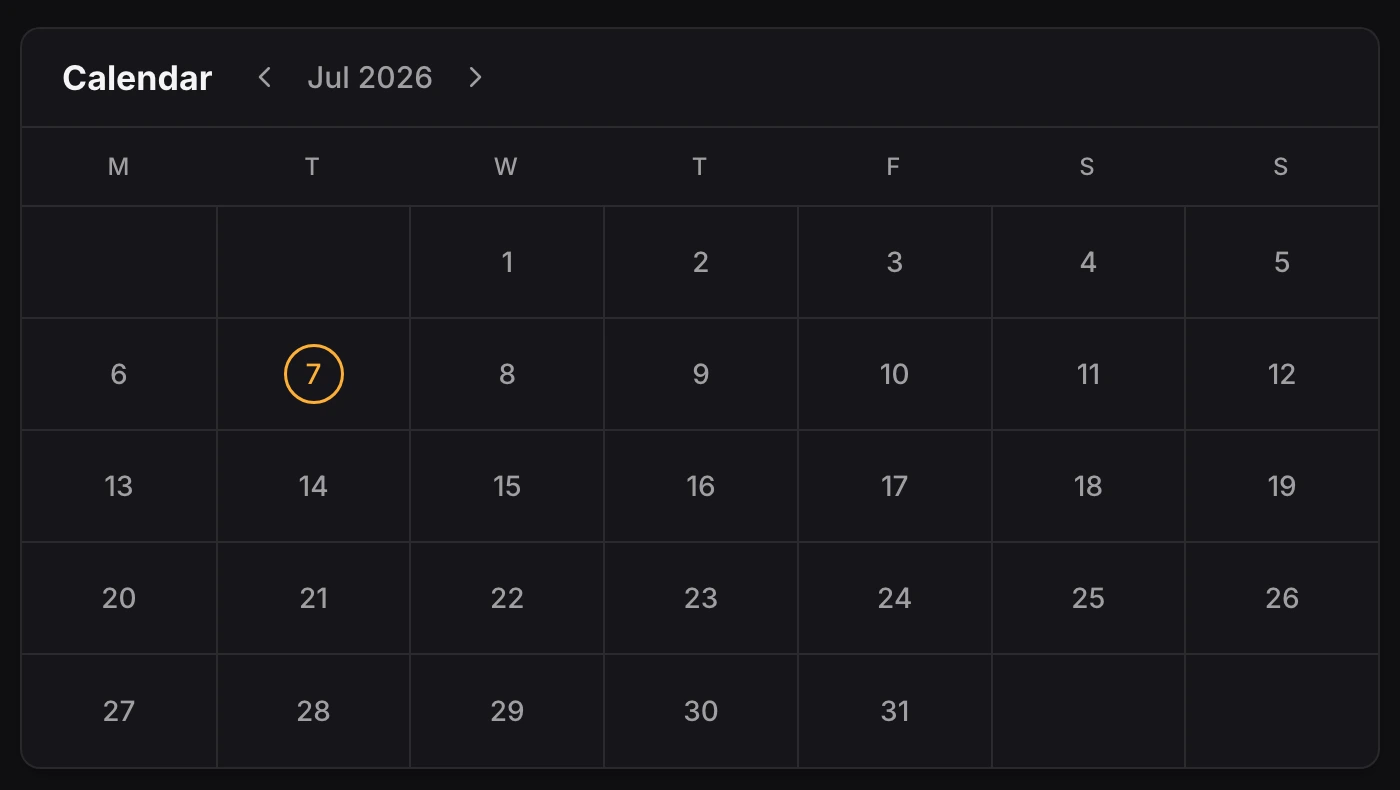
The calendar gives visitors a month-at-a-glance view of your reliability. Days with incidents or maintenances are circled, and hovering a day lists what happened with links to the full incident details. It complements the incident history section, which stays chronological.
- Show customers evaluating your service that incidents are rare, on a single screen.
- Let visitors check whether a specific date had an incident without scrolling through history.
- Display upcoming maintenance windows on their scheduled date.
Enable the calendar
- Open your status page
Navigate to Status Pages and select your status page.
- Open the Appearance settings
In the Settings tab, open Appearance.
- Turn on Incident calendar
Enable the Incident calendar option.
- Publish
Click Publish.
The calendar is off by default and is configured per status page.
What visitors see
The calendar renders at the bottom of the page, after the incident history. Weeks run Monday to Sunday, and the arrows next to the month name navigate to past or future months.
A day with at least one event shows its number in a colored circle. The color reflects the most severe event of that day:
| Color | Event type |
|---|---|
| Red | Outage |
| Amber | Incident |
| Blue | Maintenance |
Hovering a marked day opens a tooltip with the date and the list of events, each linking to its incident page. Scheduled maintenances appear on their planned date, so visitors can also see what is coming up.
Weekday and month names follow the language of the status page. On multi-language status pages, the calendar is localized like the rest of the page.