Chapter 2 of 20Browse the complete guide
How to Install Playwright and Run Your First Test
Install Playwright with npm init playwright@latest, understand the generated files, run your first test, and fix common setup problems on Linux and CI.
Before you install
Playwright needs Node.js 20 or newer. The current 1.5x releases support the 20, 22, and 24 lines, and Node 24 is the safe default for a new project. Check what you have:
node -vIf the version is below 20, upgrade Node before going further, because the installer will refuse to run. Beyond Node you only need npm, which ships with it, and around a gigabyte of free disk space for the three browser builds. pnpm and yarn work too if your project already uses them.
Scaffold a project
One command sets up everything:
npm init playwright@latestThe installer asks four questions: TypeScript or JavaScript (pick TypeScript, the default), the name of your tests folder (tests is fine), whether to add a GitHub Actions workflow, and whether to download the browsers now. Accepting every default gives you a working setup. The command behaves the same in an empty directory or inside an existing repository, where it adds @playwright/test as a dev dependency without touching your app code.
What the generated files do
| File | Purpose |
|---|---|
playwright.config.ts | Central configuration: which browsers run, where tests live, retries, reporters, and trace recording |
tests/example.spec.ts | Two small sample tests against playwright.dev that confirm your install works |
tests-examples/demo-todo-app.spec.ts | A longer suite against a demo app, worth reading but not run by default |
.github/workflows/playwright.yml | A CI workflow that installs browsers and runs the suite, only if you opted in |
package.json | Updated with @playwright/test as a dev dependency |
The config is where you will spend the most time later. The scaffolded version looks like this, trimmed to the parts that matter:
import { defineConfig, devices } from '@playwright/test';

export default defineConfig({
  testDir: './tests',
  reporter: 'html',
  use: {
    trace: 'on-first-retry',
  },
  projects: [
    { name: 'chromium', use: { ...devices['Desktop Chrome'] } },
    { name: 'firefox', use: { ...devices['Desktop Firefox'] } },
    { name: 'webkit', use: { ...devices['Desktop Safari'] } },
  ],
});
Each entry in projects is a browser configuration, and every test runs once per project. The tests-examples folder is ignored because testDir points at ./tests only.
Install the browsers
Playwright does not drive whatever Chrome you have installed. It downloads its own patched builds of Chromium, Firefox, and WebKit, pinned to the Playwright version, so results are reproducible across machines. If you skipped the download during setup, fetch them now:
npx playwright installThe builds land in a shared cache outside node_modules, so reinstalling your project does not re-download them. On Linux the browsers also need system libraries that may be missing on servers and CI runners. One flag installs both:
npx playwright install --with-depsThe --with-deps variant calls the system package manager and needs sudo. If you only care about one engine for now, npx playwright install chromium keeps the download small.
Run your first test
From the project root:
npx playwright testThis runs the two tests in the example spec once per browser project, in parallel workers. The run should finish in well under a minute and print a green summary.
| Command | What it does |
|---|---|
npx playwright test | Run every test headlessly in every project |
npx playwright test --headed | Show browser windows while tests run |
npx playwright test --project=chromium | Run a single browser |
npx playwright test --ui | Open UI mode with watch mode and time travel |
npx playwright test --debug | Step through tests with the Playwright Inspector |
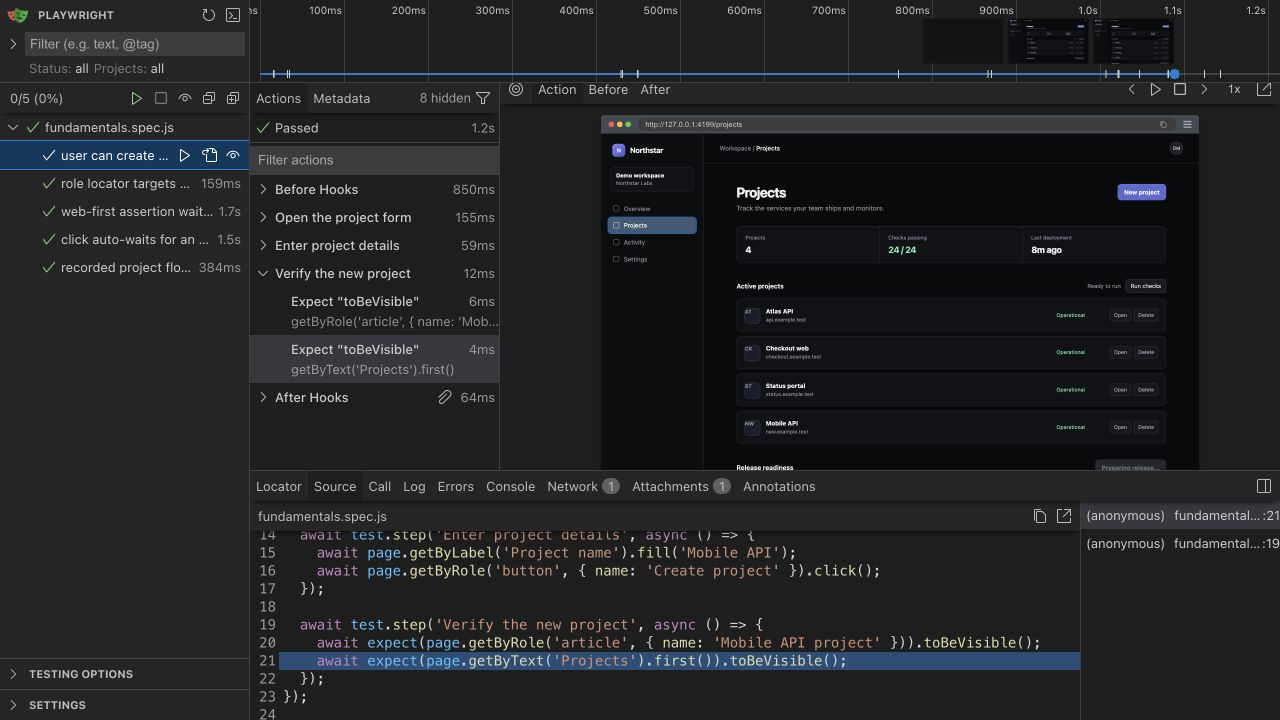
While writing tests, UI mode is the mode you want. It lists every test in a sidebar, reruns them on file changes, and lets you click through each step to see the exact DOM state at that moment. Headless runs are for CI; UI mode is for development.
Read the HTML report
After a run, open the report:
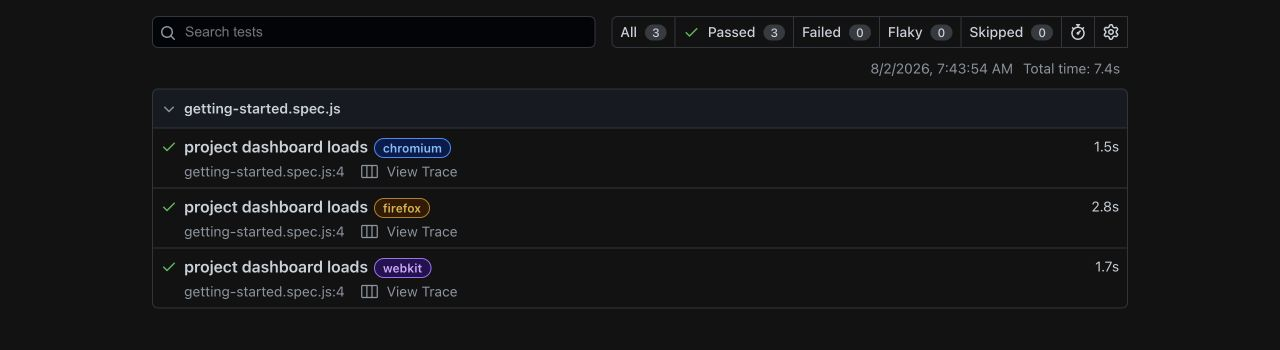
npx playwright show-reportWhen a test fails, the report opens automatically. It lists each test per browser, and clicking a failure shows the error, the step where it happened, and any attachments. With the scaffolded trace: 'on-first-retry' setting, a failed test that gets retried also records a full trace you can open from the report to replay the run action by action.
Run one file, one line, or one name
The runner accepts targets, which keeps feedback fast while you work on a single spec:
# One file
npx playwright test tests/example.spec.ts

# The test declared at line 10 of that file
npx playwright test example.spec.ts:10

# Tests whose title matches a string
npx playwright test -g "get started link"
Combined with --project=chromium, a single test in a single browser runs in a few seconds, which is the loop you want while debugging.
Keep Playwright up to date
Playwright releases roughly every month, and each release pins the browser builds it was tested against. Staying current means you test against the engines your users actually run, and you pick up fixes for browser regressions quickly. Updating is two commands:
npm install -D @playwright/test@latest
npx playwright install
The second command matters. After a package update, the pinned browser versions change, and the runner will error until the matching builds are downloaded. npx playwright --version confirms what you are on.
Fix common install problems
Missing system libraries on Linux
If the runner prints "Host system is missing dependencies", the browser builds cannot start. Run npx playwright install --with-deps, or npx playwright install-deps if the browsers themselves are already present. On distributions Playwright does not support directly, the official Docker image mcr.microsoft.com/playwright ships with everything preinstalled.
Downloads blocked by a proxy or firewall
Browser builds come from a Microsoft CDN, which corporate networks sometimes block. Set the standard HTTPS_PROXY environment variable so the installer routes through your proxy. If the CDN is unreachable entirely, PLAYWRIGHT_DOWNLOAD_HOST points the installer at an internal mirror.
Browser executable not found
An error like "Executable doesn't exist" usually appears right after updating the package, because the new version expects browser builds that have not been downloaded yet. Rerun npx playwright install. The cache lives in ~/.cache/ms-playwright on Linux, ~/Library/Caches/ms-playwright on macOS, and %USERPROFILE%\AppData\Local\ms-playwright on Windows, and deleting it before reinstalling gives you a clean slate if the state looks corrupted.
Next steps
With a working install, the interesting part starts: replacing the example spec with tests for your own app. The chapter on writing Playwright tests covers structuring specs with test.step and fixtures, and Playwright codegen shows how to record a first draft of a test by clicking through your app. Keep the cheat sheet nearby for the commands from this page.
Run it in production
Once a test passes locally, the same script can keep watching the flow after you ship. A Hyperping browser check runs your @playwright/test spec on a schedule from multiple regions and alerts you when it fails, so a broken login or checkout surfaces before users report it. The spec file you just wrote runs there unchanged.