Set up SAML SSO with Microsoft Entra ID
Let your team sign in to Hyperping through Microsoft Entra ID (formerly Azure AD). You create an enterprise application in the Entra admin center, exchange metadata with Hyperping, and run a test login.
Prerequisites
- A Hyperping Pro or Business plan. Native account SAML SSO is included at no extra charge. See pricing for plan details.
- The Owner or Admin role in Hyperping. Only these two roles can configure authentication settings.
- A role in Entra that can create enterprise applications, such as Application Administrator.
Hyperping values used during setup
Entra asks for two Hyperping URLs. Both are shown in the setup wizard, and they are the same for every account:
| Entra field | Value |
|---|---|
| Identifier (Entity ID) | https://api.hyperping.io/saml/sp |
| Reply URL (Assertion Consumer Service URL) | https://api.hyperping.io/saml/acs |
Step 1: Open the Entra ID wizard in Hyperping
Go to MembersAuthentication and click Configure on the Microsoft Entra ID (Azure AD) card.
The wizard stays open while you work in the Entra admin center. Each step below matches a step in the wizard.
Step 2: Create the enterprise application
- Open the Entra admin center
Sign in to the Microsoft Entra admin center and expand Entra ID in the sidebar.
- Create the app
Go to Enterprise apps, click New Application, then Create your own application. Name it "Hyperping", keep Integrate any other application you don't find in the gallery (Non-gallery) selected, and click Create.
Step 3: Fill in the basic SAML configuration
- Open the SAML settings
In the new application, open the Single sign-on tab and pick the SAML tile. Under Basic SAML Configuration, click Edit.
- Paste the Hyperping values
Set Identifier (Entity ID) to
https://api.hyperping.io/saml/spand Reply URL (Assertion Consumer Service URL) tohttps://api.hyperping.io/saml/acs, then click Save.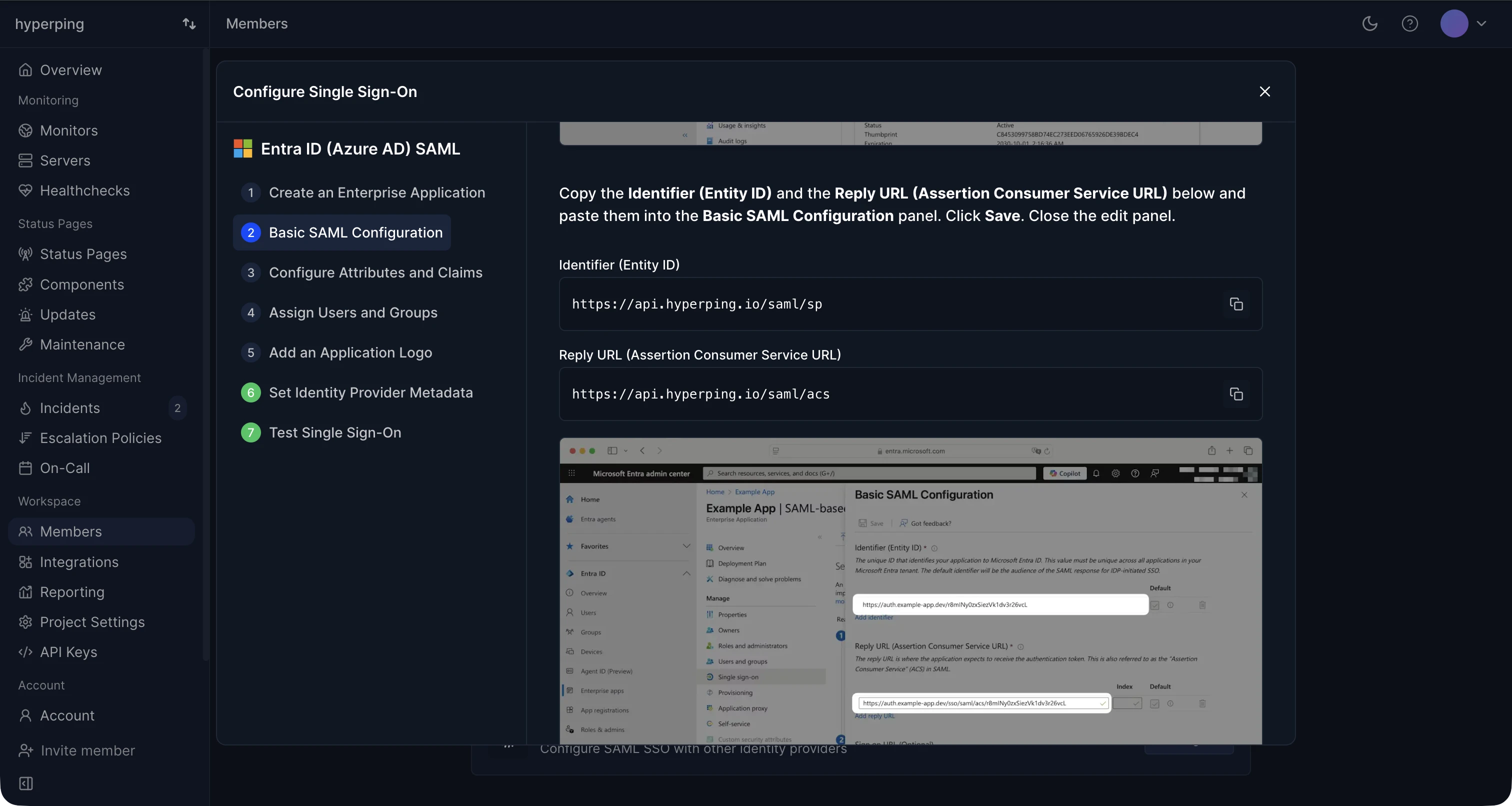
The wizard shows both values with copy buttons
Step 4: Configure attributes and claims
Entra sends these four claims by default in most tenants. Verify they exist under Attributes & Claims, and that the claim namespace ends in /claims:
| Claim name | Source attribute |
|---|---|
emailaddress | user.mail |
givenname | user.givenname |
name | user.userprincipalname |
surname | user.surname |
Step 5: Assign users and groups
Open Users and groups, click Add user/group, pick the people or groups that should reach Hyperping, and click Assign. You can also add a logo under Properties so the app is recognizable in the My Apps portal.
Step 6: Give Hyperping the Entra metadata
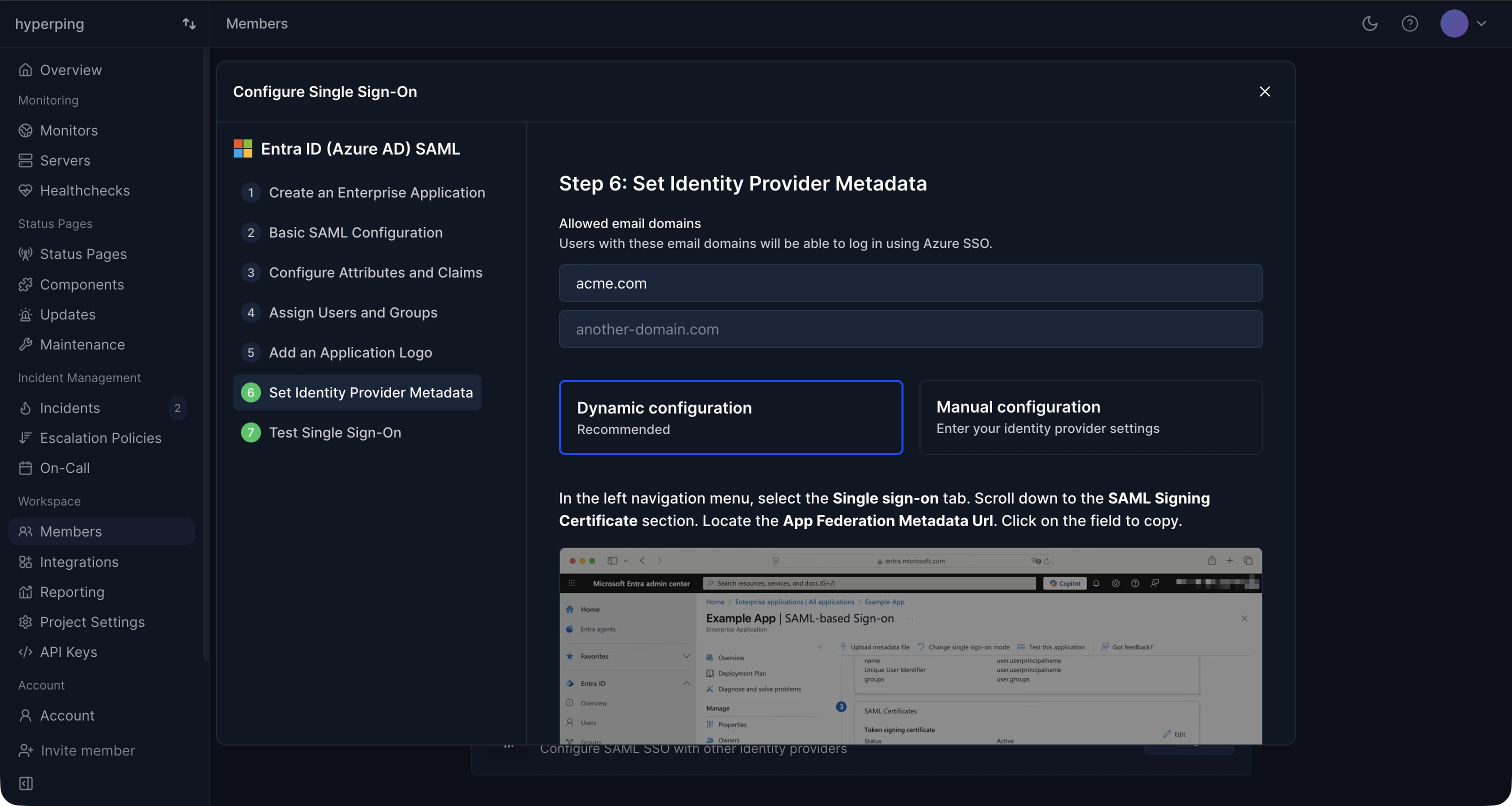
The wizard accepts the metadata in two ways. The metadata URL is the recommended one, since Hyperping fetches the SSO URL, issuer, and signing certificate from it and picks up certificate rotations automatically.
- Copy the federation metadata URL
On the app's Single sign-on page, under SAML Certificates, copy the App Federation Metadata Url.
- Paste it into Hyperping
In the wizard, keep Dynamic configuration selected and paste the URL into Identity provider metadata URL.
- Add your allowed email domains
Enter the email domains your teammates use, for example
yourcompany.com. Hyperping uses the domain to route login attempts to this connection.
If you prefer Manual configuration, enter the Identity provider Single Sign-On URL (https://login.microsoftonline.com/…/saml2), the Identity provider issuer (https://sts.windows.net/…/), and upload the X.509 certificate downloaded from the SAML Certificates section.
Step 7: Test the connection
Back in the wizard, click Test Connection. A popup runs a real login against Entra. Once you see Connection successful, click Complete Setup.
Troubleshooting
The test login fails with "user not found"
Your provisioning policy is Invite-only and the Entra user has no Hyperping invite yet. Invite them from the Teammates page first, or switch provisioning to Request access or Auto-provision.
Entra shows AADSTS50105 (user not assigned)
The user is not assigned to the Hyperping enterprise application. Add them under Users and groups.
Login fails for accounts without a mail attribute
The emailaddress claim reads from user.mail, which can be empty for some accounts. Either populate the mail attribute in Entra or change the claim's source attribute to user.userprincipalname.