Set up SAML SSO
Let your team sign in to Hyperping through your identity provider. Hyperping has guided setup wizards for Okta, Microsoft Entra ID (Azure AD), Google Workspace, and JumpCloud, and any other SAML 2.0 compliant provider works through the generic configuration. If your identity team prefers OpenID Connect, see Set up OpenID Connect SSO.
What SAML SSO covers
SAML SSO controls how your teammates log in to the Hyperping dashboard. Native connections are included from Pro at no extra charge. These support Microsoft Entra ID, Okta, Google Workspace, KeyHub and JumpCloud. Other providers through WorkOS require Business. Users sign in through your IdP, and Hyperping trusts the assertion, which gives you centralized offboarding and aligns with SOC 2 and ISO 27001 access-control requirements.
SAML sits alongside the other login methods. Sign in with Google is available on all plans and combines with SAML when your policy is set to allow both. Email and password stays available for the Owner as a lockout fallback, so you can never lock yourself out of the account. See Login methods for a full comparison of the three.
Prerequisites
Step 1: Get the ACS URL and entity ID from Hyperping
- Open the Authentication tab
Go to the Members section and open the Authentication tab.
- Start the setup wizard
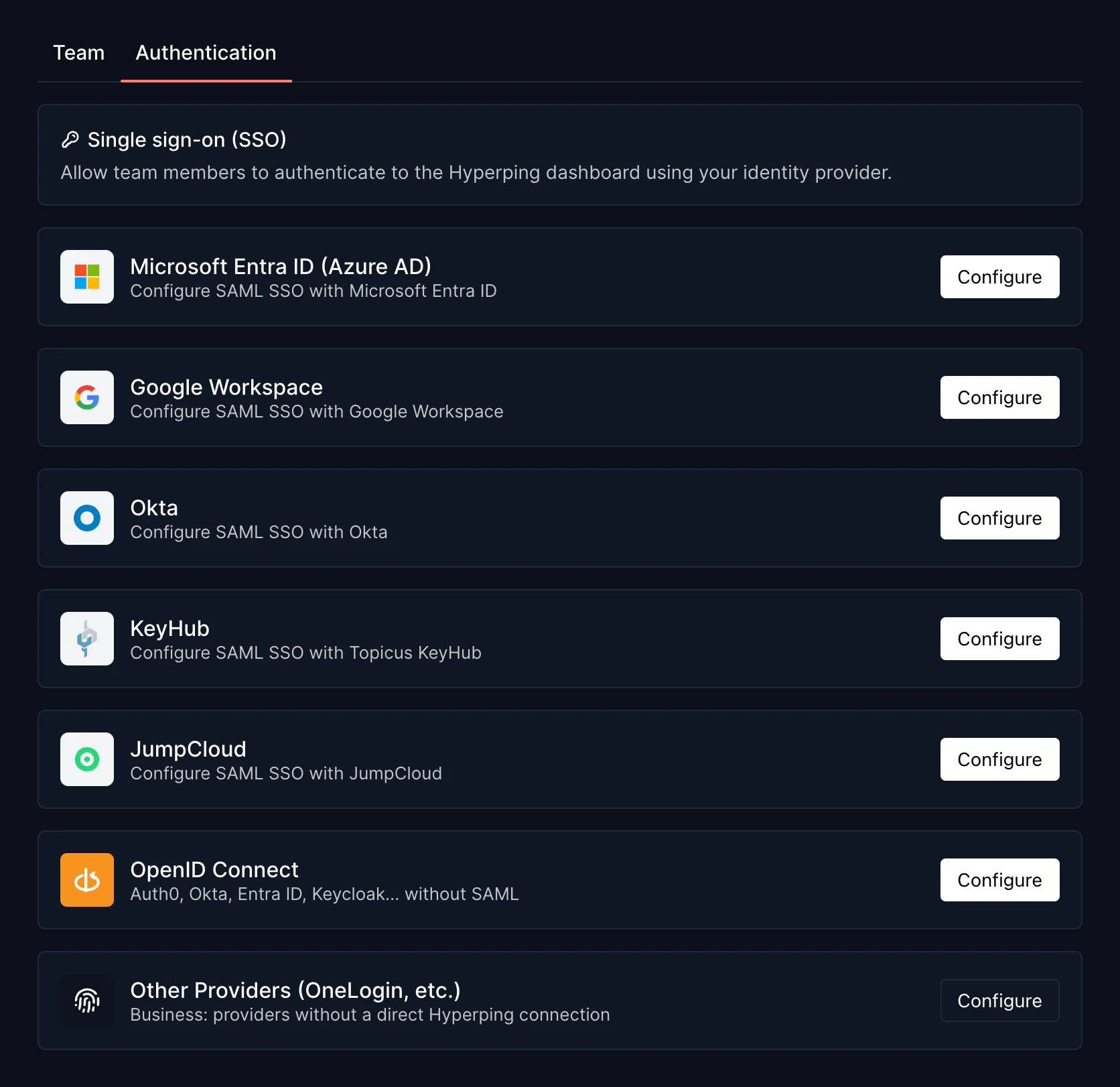
Click Configure on your identity provider's card. Providers with a guided wizard: Microsoft Entra ID (Azure AD), Google Workspace, Okta, and JumpCloud. KeyHub also has a native setup wizard. Other providers require Business and appear under Other Providers.
- Copy the two values
The setup wizard shows Hyperping's ACS URL (
https://api.hyperping.io/saml/acs) and entity ID (https://api.hyperping.io/saml/sp). Keep this tab open, your IdP needs both values in the next step.
Step 2: Create the SAML application in your IdP
Each provider has a dedicated guide that mirrors the setup wizard, with the exact screens, field names, and attribute mappings:
In short, every provider asks for the same two values, but labels them differently:
| Provider | Create the app under | ACS URL field | Entity ID field |
|---|---|---|---|
| Okta | Applications → Create App Integration → SAML 2.0 | Single sign-on URL | Audience URI (SP Entity ID) |
| Microsoft Entra ID | Enterprise applications → New application → Create your own application | Reply URL (Assertion Consumer Service URL) | Identifier (Entity ID) |
| Google Workspace | Apps → Web and mobile apps → Add custom SAML app | ACS URL | Entity ID |
In your IdP, configure the application to send each user's work email address as the name identifier, then assign the users or groups who should have access. The setup wizard in Hyperping indicates any additional field it needs.
Once the application is created, copy its metadata URL or download the metadata XML. If your provider is not in the table above, any SAML 2.0 compliant provider works with the generic SAML configuration in the wizard.
Step 3: Paste the IdP metadata into Hyperping
Back in the Hyperping setup wizard, paste the metadata URL or XML from your IdP. The wizard walks through each field.
Step 4: Test the connection
Run the built-in test login before enforcing anything.
Choose an enforcement mode
After testing, decide whether SSO is optional or mandatory for non-Owner users:
| Mode | Behavior | Use when |
|---|---|---|
| Allow SSO and email/password | Users pick either method at the login screen. Sign in with Google also stays available. | During rollout, or when you need a break-glass path outside the IdP. |
| Require SSO | Non-Owner users must sign in through your IdP. The Owner keeps email and password as a lockout fallback. | Once rollout is done. Aligns with SOC 2 and ISO 27001 controls. |
Provision teammates and roles
The provisioning policy decides what happens when someone signs in through your IdP without an existing Hyperping account:
| Policy | Behavior |
|---|---|
| Invite-only | SSO login fails unless an admin already invited the user. Most secure. |
| Request access | New users land on a pending screen. Admins get notified and approve or deny from the Teammates page. |
| Auto-provision | Anyone with a matching email domain joins automatically. Best when your IdP is the source of truth for employment. |
Provisioned users get a role like any other teammate. New invites default to Member, and you can change roles from the Teammates section. See Invite teammates for the invite flow and Roles and permissions for what each role can do.
SSO for private status pages
Protecting a status page with SSO is a separate feature aimed at your end users, not your teammates. You create reusable connections under Status Pages → SSO Connections, and each connection can protect multiple status pages. Connections are billed per month: $49 for Microsoft Entra ID, Okta, Google Workspace, or any OpenID Connect provider such as Auth0, and $99 for other SAML providers set up through the hosted portal.
See Status page SSO for the full setup, and Private status pages for the simpler access controls, password protection and email access codes.
Troubleshooting
The test login fails with "user not found"
Your provisioning policy is set to Invite-only and the user has no account yet. Invite them from the Teammates page first, or switch provisioning to Request access or Auto-provision.
I enabled "Require SSO" and locked myself out
Owner accounts are exempt by design and can always sign in with email and password. Log in as the Owner, go to Teammates → Authentication, and relax the policy.
My IdP is not listed in this guide
Any SAML 2.0 compliant provider works through the generic SAML configuration in the setup wizard, and any OpenID Connect provider through the OpenID Connect card. If you hit a snag, contact us with your IdP's metadata.