Set up OpenID Connect SSO
Let your team sign in to Hyperping through any OpenID Connect provider, such as Auth0, Okta, Microsoft Entra ID or Keycloak. Use it when your identity team would rather not maintain a SAML application for Hyperping.
OpenID Connect (OIDC) is the sign-in layer of OAuth 2.0. You register Hyperping as a web application in your identity provider, paste three values back into Hyperping, and run a test sign-in. Enforcement, provisioning and project access work as they do for SAML SSO, and OpenID Connect is included from Pro at no extra charge.
- Your identity team runs Auth0 and does not want to set up SAML for a single tool.
- Your other internal apps already sign in through OIDC clients in Okta, Entra ID or Keycloak.
- You want the same identity provider for the Hyperping dashboard and for your private status pages.
Prerequisites
- A Hyperping Pro or Business plan. See pricing for plan details.
- The Owner or Admin role in Hyperping. See Roles and permissions.
- Admin access to your identity provider, to create an application.
- No SAML provider configured in Hyperping. The account uses one dashboard SSO provider at a time, so remove a SAML configuration before you switch to OpenID Connect.
The callback URL
Your identity provider needs one Hyperping address, the URL it sends people back to after they sign in:
https://api.hyperping.io/v1/auth/sso/oidc/callback
The setup dialog shows it with a copy button. The same URL serves dashboard sign-in, status page connections and test sign-ins, so one application in your identity provider can be used for all three. Each provider names the field differently:
| Provider | Field for the callback URL |
|---|---|
| Auth0 | Allowed Callback URLs |
| Okta | Sign-in redirect URIs |
| Microsoft Entra ID | Redirect URI, on the Web platform |
| Keycloak | Valid redirect URIs |
Step 1: Open the OpenID Connect setup
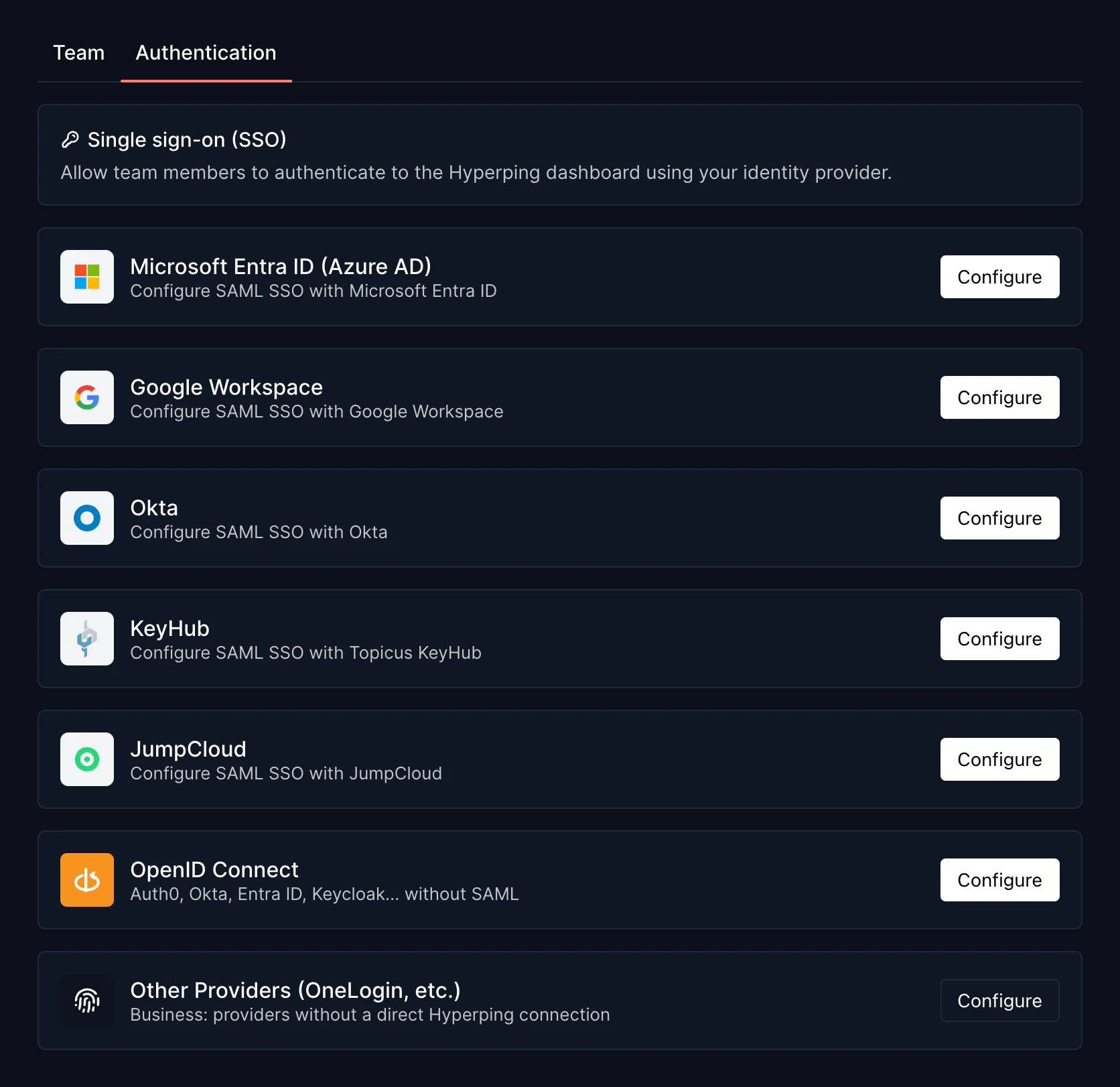
Go to MembersAuthentication and click Configure on the OpenID Connect card.
Step 2: Create the application in your identity provider
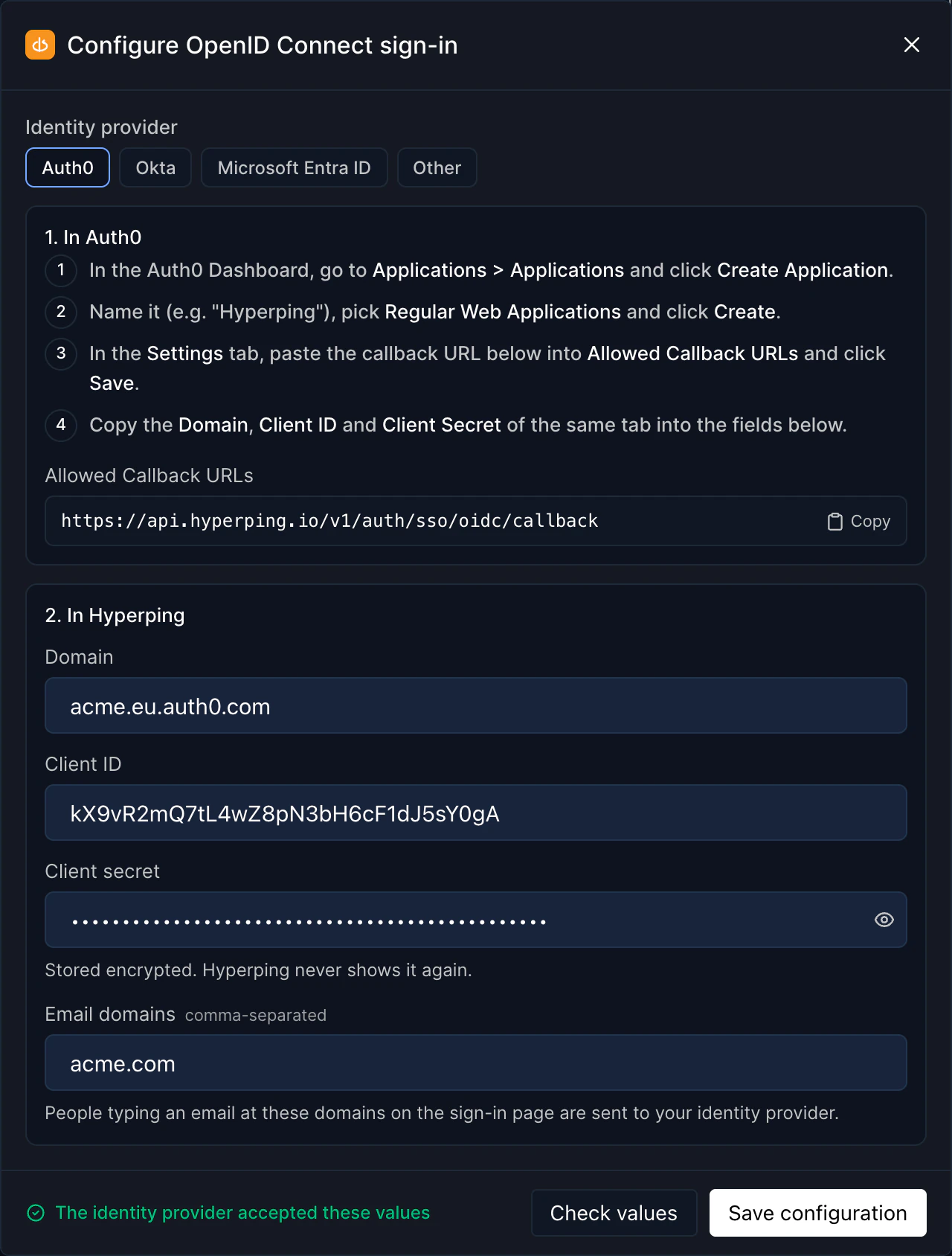
At the top of the dialog, pick Auth0, Okta, Microsoft Entra ID or Other to see the steps for that provider. In every case you create a web application with a client secret, register the callback URL, and give access to the people who need Hyperping.
| Provider | Application to create | Issuer to paste in Hyperping |
|---|---|---|
| Auth0 | Applications → Applications → Create Application, type Regular Web Applications | The Domain, for example acme.eu.auth0.com |
| Okta | Applications → Applications → Create App Integration, then OIDC - OpenID Connect and Web Application | Your Okta domain, for example https://acme.okta.com |
| Microsoft Entra ID | App registrations → New registration, single tenant, Web platform, plus a client secret under Certificates & secrets | https://login.microsoftonline.com/<tenant ID>/v2.0 |
| Keycloak | Clients → Create client, type OpenID Connect, Client authentication on, Standard flow enabled | https://<your host>/realms/<realm> |
| Other | A confidential web application that uses the authorization code flow | The URL that comes before /.well-known/openid-configuration |
Hyperping requests the openid, email and profile scopes, which providers allow by default. With Entra ID, copy the secret's Value, not its Secret ID.
Step 3: Enter the values in Hyperping
- Paste the issuer
Auth0 calls it Domain, the other providers Issuer URL. You can paste a bare domain, the issuer URL, or the full discovery URL ending in
/.well-known/openid-configuration. - Paste the client ID and client secret
Hyperping stores the secret encrypted and never shows it again. When you edit the configuration later, leave Client secret empty to keep the saved one.
- List your email domains
In Email domains, enter the domains your teammates use, separated by commas, for example
acme.com. People who sign in with an email at these domains are sent to your identity provider. A domain can belong to one SSO configuration only. - Check and save
Click Check values. Hyperping reads your provider's discovery document and asks it whether it accepts the client ID and secret, without signing anyone in. Then click Save configuration.
Step 4: Test the sign-in
Click Test sign-in, right after saving or later on the OpenID Connect card. A popup opens your identity provider: sign in with your work account. The test runs the whole sign-in and checks the token your provider returns, but signs nobody in to Hyperping.
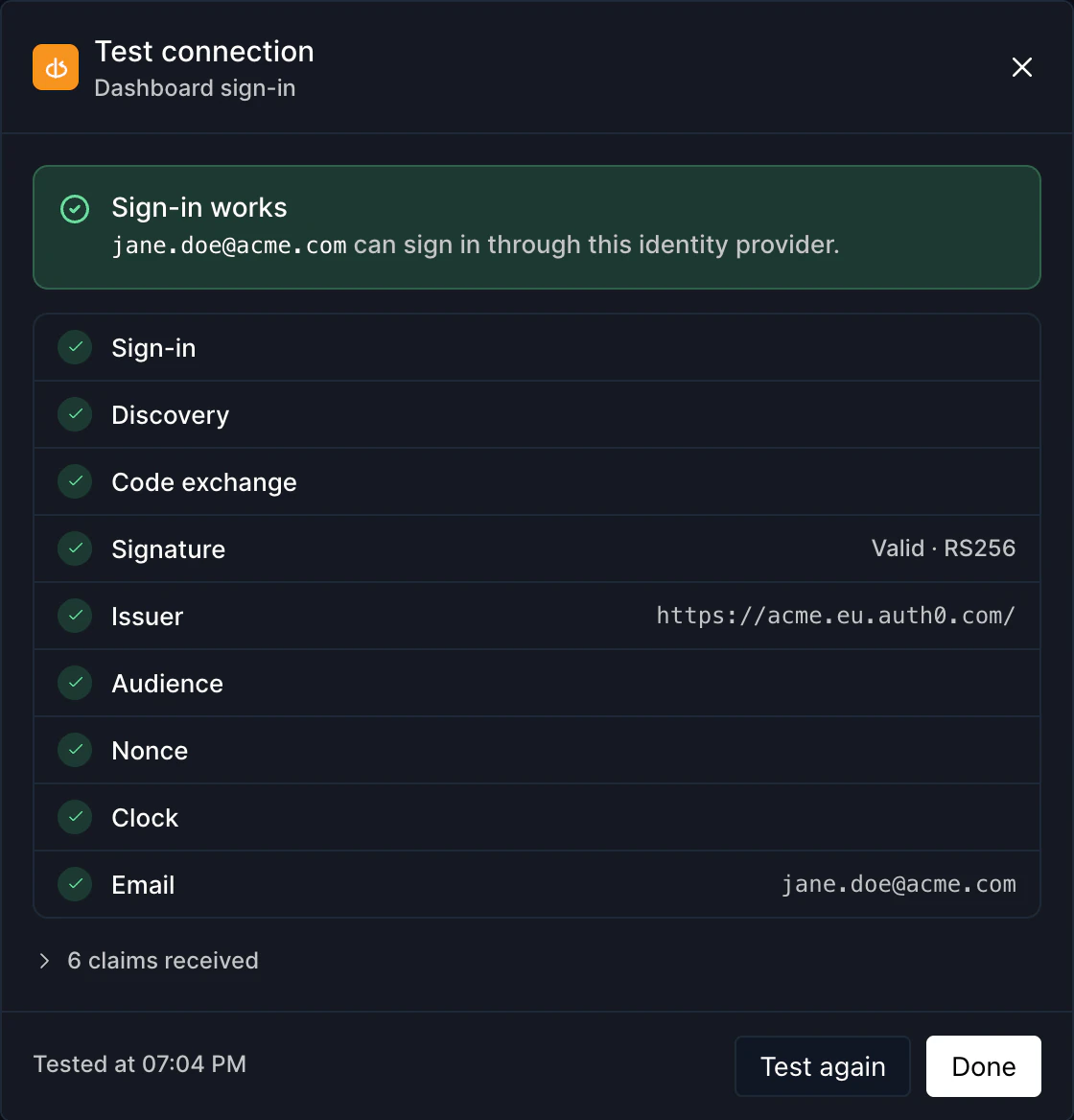
| Check | What Hyperping verifies |
|---|---|
| Sign-in | Your provider sent the person back with an authorization code. |
| Discovery | The issuer still publishes the discovery document saved with the configuration. |
| Code exchange | The provider accepted the client ID, the secret and the PKCE verifier, and returned an ID token. |
| Signature | The ID token is signed with a key the provider publishes (RS256, PS256, ES256 and their stronger variants) or with the client secret (HS256). Unsigned tokens are refused. |
| Issuer | The token comes from the issuer saved in the configuration. |
| Audience | The token was issued for your client ID. |
| Nonce | The token answers this sign-in request and was not replayed from another one. |
| Clock | The token is inside its validity window, with 60 seconds of tolerance. |
| The token carries an email address your provider has verified. |
When a check fails, the report explains why and whether the fix belongs in Hyperping or in your identity provider.
Set the SSO policies
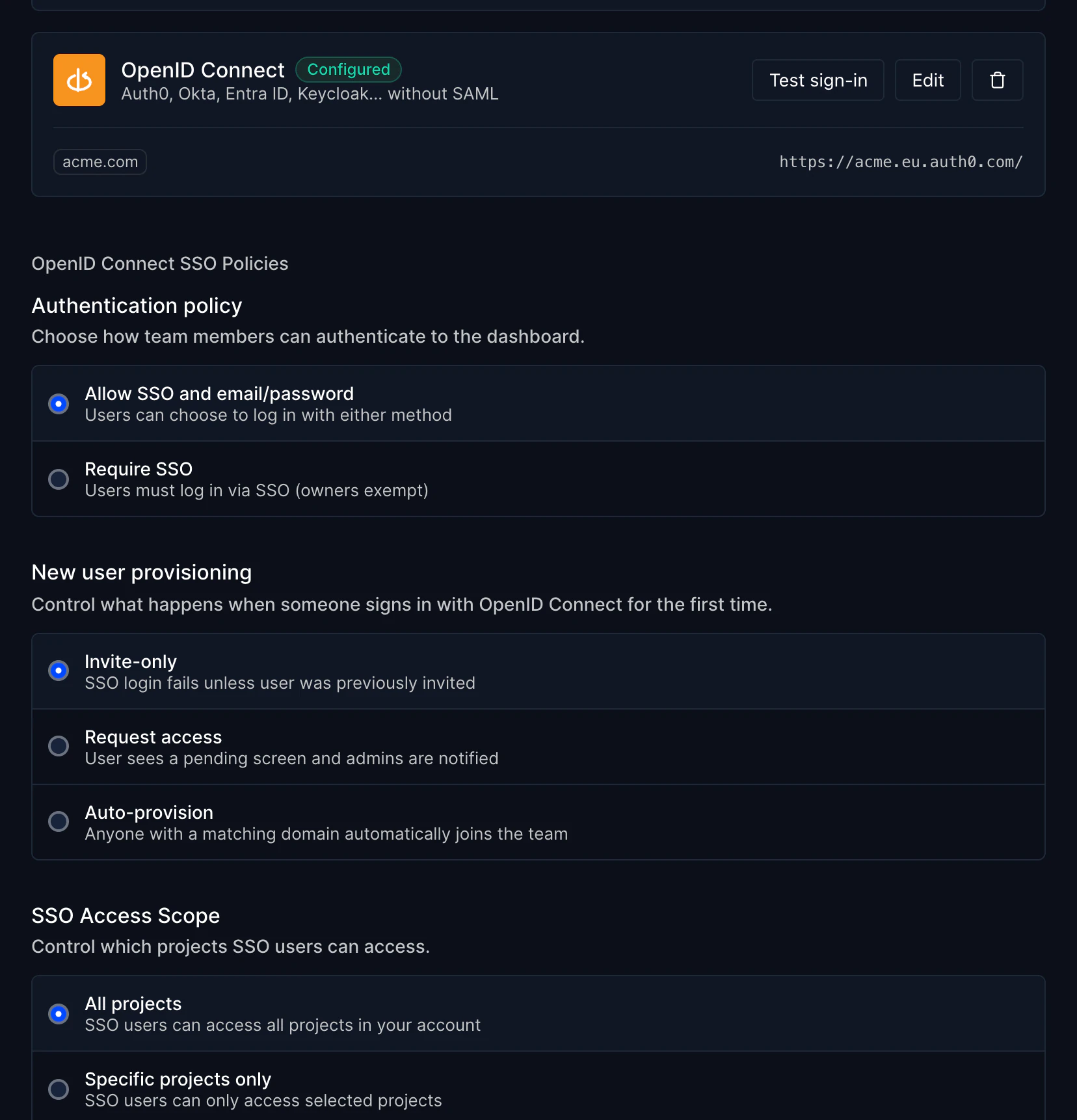
Once the configuration is saved, the card shows your email domains and issuer, and the OpenID Connect SSO Policies appear below it. They follow the same rules as the SAML policies, described in Login methods.
| Policy | Options | Default |
|---|---|---|
| Authentication policy | Allow SSO and email/password, or Require SSO. The Owner can always sign in with email and password. | Allow SSO and email/password |
| New user provisioning | Invite-only, Request access, or Auto-provision for emails at your domains. | Invite-only |
| SSO Access Scope | All projects, or Specific projects only. | All projects |
How teammates sign in
On the Hyperping sign-in page, teammates click Sign in with SAML SSO, enter their work email and click Sign in. The button keeps this label for every provider, OpenID Connect included. Hyperping finds your configuration from the email domain and sends them to your identity provider.
Once the provider has confirmed who they are:
- Someone who already belongs to your Hyperping account, as Owner, teammate or account member, is signed in.
- An email that belongs to another Hyperping account is refused. That person signs in with their password, or you invite them to your account.
- Someone new needs an email at one of your email domains. The provisioning policy then decides whether they join, wait for approval, or are refused.
- The email must be verified by your provider. Hyperping refuses an address marked
email_verified: false.
Troubleshooting
Check values says "Nothing at ... (HTTP 404)"
The issuer is wrong. Paste the address that comes before /.well-known/openid-configuration. For Entra ID it is https://login.microsoftonline.com/<tenant ID>/v2.0, for Keycloak https://<your host>/realms/<realm>.
Check values says the discovery document names another issuer
Some providers publish an issuer that differs from the URL you typed, for example an Okta custom authorization server (https://acme.okta.com/oauth2/default) or an Auth0 custom domain. Paste the exact issuer quoted in the message.
"The identity provider refused this client ID and secret"
Copy both values again from the same application. If the secret was rotated or has expired, which happens with Entra ID secrets, create a new one, click Edit on the OpenID Connect card and paste it.
Sign-in fails with "This email belongs to another Hyperping account"
The person already has a Hyperping account outside yours. They can sign in with their password, or an Owner or Admin of your account can invite them.
Sign-in fails with "Your identity provider has not verified this email address"
Verify the address in your identity provider, then sign in again. In Auth0, users of a database connection must confirm their email first.
The sign-in page says "This email isn't available with SAML/SSO"
The email's domain is not in the Email domains of your configuration. Click Edit on the OpenID Connect card and add it.