Owner
UnrestrictedThe Owner has full access to the entire account. Exactly one Owner per account.
Usually assigned to the founder or account holder. Transferring ownership changes the previous Owner to Member.
Control who can do what across your Hyperping account and projects. Four roles give you fine-grained control, with every resource scoped inside a project, and team members only seeing the projects they belong to.
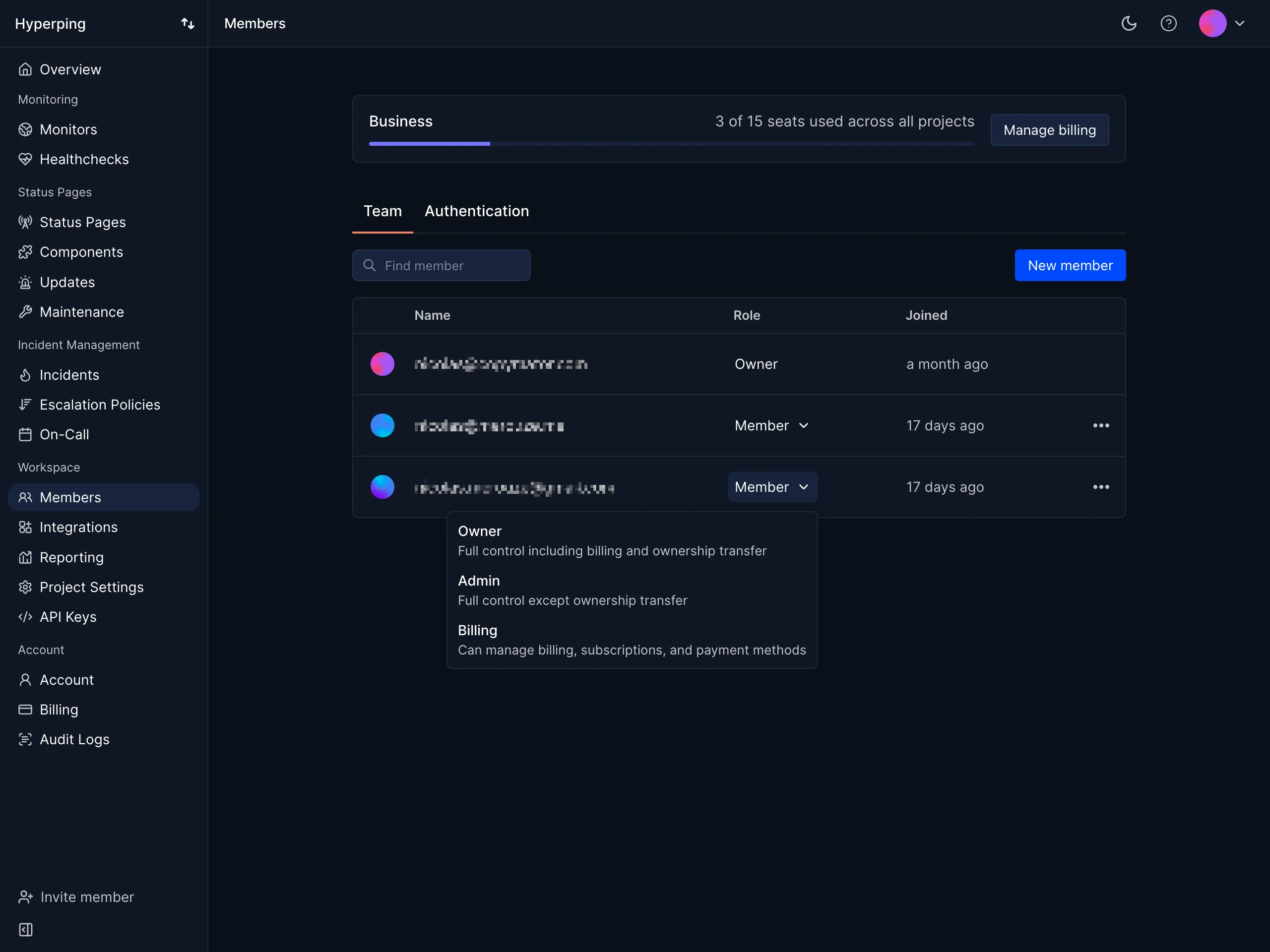
One Owner per account. All other team members are assigned one of three roles: Admin, Member, or Billing.
The Owner has full access to the entire account. Exactly one Owner per account.
Usually assigned to the founder or account holder. Transferring ownership changes the previous Owner to Member.
Same capabilities as the Owner except billing and ownership transfer.
Usually assigned to a team lead or manager who maintains the monitoring configuration.
Can manage monitors and respond to incidents within their assigned project.
Usually assigned to an engineer who configures monitors and responds to incidents.
Read-only access to project data plus the ability to manage subscription and payment details.
Usually assigned to a finance or operations contact who handles invoices and plan changes.
Quick reference for every capability. A check means allowed, and a minus sign means blocked.
| Action | Owner | Admin | Member | Billing |
|---|---|---|---|---|
| Read access | ||||
| View monitors, reports, and outages | ||||
| View on-call schedules | ||||
| View teammates list | ||||
| Monitoring and incidents | ||||
| Create, edit, and delete monitors | - | |||
| Bulk-edit monitors | - | |||
| Create and update on-call schedules | - | |||
| Delete on-call schedules | - | - | ||
| Create outages | - | |||
| Acknowledge and resolve outages | - | |||
| Escalate outages | - | |||
| Update outage severity and details | - | |||
| Write postmortems and AI summaries | - | |||
| Delete outages | - | |||
| Account administration | ||||
| Invite and remove teammates | - | - | ||
| Transfer account ownership | - | - | - | |
| Manage billing and subscription | - | - | ||
| Configure SSO and authentication | - | - | ||
Projects act as boundaries. A teammate invited to Project A cannot see monitors, status pages, or integrations in Project B. Only the Owner sees every project.
Production monitors, public status page, and on-call rotation.
Jane is Owner, Marcus is Admin, and Priya is Member.
Staging monitors and internal incident workflows.
Jane is Owner, Ren is Admin, and Sasha is Member. Priya has no access.
Common ways to split work across projects:
Common mappings from job title to recommended role:
| Team member | Responsibility | Role |
|---|---|---|
| CTO or team lead | Manages the team and configuration | Admin |
| Engineer | Sets up monitors and responds to incidents | Member |
| Finance or operations | Handles invoices and plan changes | Billing |
Add a second verification step to login. Once enabled, you need your password plus a code from your authenticator app.
Enable it in your account settings. It is available on every plan.
Hyperping records who changed a setting, when it changed, and which project it affected.
Use the log to review configuration changes after an incident or during a compliance audit.
Data is encrypted at rest with LUKS and in transit with SSL/HTTPS.
Hyperping stores data in DigitalOcean's Frankfurt region and provides self-service data deletion.
Team members only see projects they were invited to. Check the Teammates page while inside the correct project to verify they were invited there.
Assign them the Billing role, or let the Owner handle it directly. Change roles on the Teammates page.
Check the provisioning policy in your SSO settings. If it's set to "Invite-only," the user needs to be invited before SSO login will work. See login methods for details.