
No space left on device is how Linux prints ENOSPC, errno 28: a write failed because the filesystem behind that path had no free blocks, or no free inodes. To fix it, find the mount behind the failing path with df -h, check inodes with df -i, walk down with du to the directory that grew, and check lsof +L1 for deleted files that still hold space. On most servers the space went to the systemd journal, /var/log, the package cache or Docker. To stop it happening again, put a size limit on every log and cache that grows without one, and keep a history of disk usage per mount so the next one shows up as a trend days before it becomes an outage.
Key takeaways
- ENOSPC has two common causes that look identical from the application: free space at 0 (
df -hshows 100%) or free inodes at 0 (df -ishows 100% whiledf -hstill reports gigabytes free). - Run
dfon the path that failed, not on/.df -h /var/lib/dockeranswers the question in one line, even on a host with five mounts. - Deleting a log file a process still has open frees nothing. Empty it with
truncate -s 0, or make the process reopen its files, andlsof +L1shows every file stuck in that state. - Docker's
json-filelog driver keeps container logs forever unless you setmax-sizeandmax-file, anddocker system dfdoes not count those logs at all. - "(os error 28)" is the same error in the format Rust tools print it, so cargo, rustup, uv and deno users hit it mostly on small CI disks.
Same error, different wording
The kernel returns one error code and every runtime wraps it in its own words. If your log shows any of these, this article applies.
| Where you see it | Exact wording |
|---|---|
| Shell, coreutils | cp: error writing 'backup.tar': No space left on device |
Bash, when /tmp is full |
cannot create temp file for here-document: No space left on device |
| Python | OSError: [Errno 28] No space left on device |
| Node.js | Error: ENOSPC: no space left on device, write |
| Rust tools (cargo, rustup, uv, deno) | No space left on device (os error 28) |
| Go | write /data/out.json: no space left on device |
| PostgreSQL | could not extend file "base/16384/2619": No space left on device |
| MySQL, MariaDB | Errcode: 28 - No space left on device |
| Docker | failed to register layer: ... no space left on device |
A full disk also shows up one layer higher, as an application that starts returning errors. A web app that cannot write its session files or temp uploads usually answers with a 500 or a 503 Service Unavailable, and nothing in the HTTP response mentions the disk.
ENOSPC has more than one cause
Before deleting anything, work out which limit you hit. Each one needs a different fix.
| Cause | How it shows in df |
Typical trigger |
|---|---|---|
| Blocks exhausted | df -h at 100% |
Logs, journal, Docker images, backups, core dumps |
| Inodes exhausted | df -i at 100%, df -h has room |
Millions of small files: PHP sessions, cache dirs, mail queue |
| Deleted file still open | df higher than du totals |
A log removed with rm while the process kept writing |
| ext4 root reserve | 100% for users, root can still write | Default 5% of blocks reserved for root |
| tmpfs full | df -h /tmp or /dev/shm at 100% |
Big builds in a RAM-backed /tmp, Docker's 64 MB /dev/shm |
| Not the disk at all | Everything looks fine | inotify watch limit, btrfs metadata full |
Quick diagnosis: find the full mount first
These are the checks I run, in this order, on any host that throws the error. They all ship with a standard install except ncdu and sometimes lsof.
1. Run df on the path that failed
The error almost always names a path. Pass it to df and it reports the mount that path lives on, which is the only mount that matters right now.
$ df -h /var/lib/docker
Filesystem      Size  Used Avail Use% Mounted on
/dev/root        39G   39G     0 100% /
On a host with separate volumes, df -hT -x tmpfs -x devtmpfs lists every real mount with its filesystem type. A full /var and a full / are different incidents, and the per-mount view is how you tell them apart.
When the root filesystem is at 100%, expect small things to break around you: tab completion, heredocs, apt install. Free a few hundred megabytes first (the journal vacuum below is the quickest) before installing any tool to investigate.
2. Check inodes with df -i
Every file, directory and symlink uses one inode, and ext4 fixes the inode count when the filesystem is created. Run this every time, even when df -h already explains the problem.
$ df -i /
Filesystem      Inodes  IUsed   IFree IUse% Mounted on
/dev/root      2580480 318220 2262260   13% /
13% here, so this incident is about space. If IUse% were 100%, skip to the inode fix below, because deleting large files would not help at all.
3. Find the directory that grew with du or ncdu
Walk down from the mount point one level at a time. The -x flag keeps du on a single filesystem so other mounts do not pollute the totals.
$ sudo du -xh --max-depth=1 / 2>/dev/null | sort -h | tail -5
412M	/boot
2.8G	/usr
3.1G	/home
31G	/var
38G	/
$ sudo du -xh --max-depth=1 /var 2>/dev/null | sort -h | tail -4
1.2G /var/cache
3.9G /var/log
25G /var/lib
31G /varKeep going into the largest entry until the answer is obvious. On this host, /var/lib/docker holds 24G of the 25G.
If you have the space to install it, ncdu does the same walk interactively and lets you delete from inside the listing. Run ncdu -x / so it stays on the root filesystem.
4. Look for deleted files still held open
df says 39G used, du totals 38G. The missing gigabyte belongs to files that were deleted while a process still had them open. du walks directory entries and cannot see them. df reads the filesystem's own accounting and still counts every block.
$ sudo lsof +L1
COMMAND   PID     USER   FD   TYPE DEVICE   SIZE/OFF NLINK   NODE NAME
gunicorn 2214 www-data    3w   REG  259,1 1288490188     0 524811 /var/log/app/gunicorn.log.1 (deleted)
NLINK 0 and (deleted) are the markers, and SIZE/OFF is 1.2 GB you will never find with ls. The space comes back when the process closes the descriptor, so reload or restart the service (sudo systemctl restart gunicorn), or send the signal it uses to reopen its logs (gunicorn and nginx both reopen on USR1). The disk space monitoring guide covers the /proc/<pid>/fd truncation trick for processes you cannot restart.
Fixes, from quickest to most involved
Start with the fixes that are safe on any host and free space in seconds. Each one says what it removes, so you can skip the ones that do not match what du showed you.
Vacuum the systemd journal
$ journalctl --disk-usage
Archived and active journals take up 3.1G in the file system.

$ sudo journalctl --rotate
$ sudo journalctl --vacuum-size=500M
Vacuuming done, freed 2.6G of archived journals from /var/log/journal/8f3c2a61d0b54f0c9e7d4b1a2c6f9e03.
--vacuum-size only removes archived journal files, which is why --rotate comes first: it closes the active file so it can be vacuumed too. --vacuum-time=7d is the alternative when you care about age rather than size. Never delete files under /var/log/journal by hand while journald is running.
Clear old logs in /var/log without rm on live files
Rotated files (syslog.2.gz, access.log.5.gz) are safe to delete. A log a process is still writing to is not, for the reason step 4 showed: rm removes the name and keeps the space. Empty it in place instead.
# See the biggest files first
sudo find /var/log -type f -size +100M -exec ls -lh {} + | sort -k5 -h

# Empty a live log without breaking the writer
sudo truncate -s 0 /var/log/app/worker.log

# Remove compressed rotations older than two weeks
sudo find /var/log -type f -name "*.gz" -mtime +14 -delete
Clean the package cache
Downloaded packages stay on disk after installation.
# Debian and Ubuntu: empties /var/cache/apt/archives
sudo apt-get clean

# RHEL, Rocky, AlmaLinux, Fedora
sudo dnf clean all
Remove old kernels, especially when /boot is full
A small separate /boot partition fills with old kernels, and then every kernel upgrade fails with ENOSPC halfway through. Check which kernel is running, then let the package manager remove the rest.
uname -r
dpkg --list 'linux-image-*' | grep ^ii

# Debian and Ubuntu: removes kernels no longer needed, keeps the running one
sudo apt autoremove --purge

# RHEL 8 and later: keep the two most recent kernels
sudo dnf remove --oldinstallonly --setopt installonly_limit=2 kernel
Never remove the kernel uname -r prints. On Ubuntu, disabled snap revisions also add up under /var/lib/snapd/snaps: snap list --all shows them, and sudo snap set system refresh.retain=2 keeps the fewest the system allows.
Reclaim Docker space
docker system df breaks Docker's usage down by type. This is the 24G from the du walk above.
$ docker system df
TYPE            TOTAL     ACTIVE    SIZE      RECLAIMABLE
Images          47        6         14.2GB    11.8GB (83%)
Containers      9         6         412MB     36.1MB (8%)
Local Volumes   12        4         3.4GB     1.1GB (32%)
Build Cache     214       0         5.9GB     5.9GB
Then prune, from least to most aggressive:
# Stopped containers, unused networks, dangling images, unused build cache
docker system prune

# Also every image not used by a container: 11.8GB here
docker system prune -a

# Build cache only, keeping what was used in the last 24 hours
docker builder prune --filter until=24h
Leave volumes out unless you know what is in them. docker volume prune deletes data that no container currently mounts, and a database volume detached during a redeploy looks exactly like that.
Two things docker system df does not show you well:
- A container writing into its own filesystem instead of a volume.
docker ps -sadds aSIZEcolumn for each container's writable layer under/var/lib/docker/overlay2. Never delete directories inoverlay2by hand: Docker's metadata still points at them and the daemon breaks. Remove or recreate the container instead. - Container logs. The default
json-filedriver writes to/var/lib/docker/containers/<id>/<id>-json.logwith no size limit.
$ sudo du -h /var/lib/docker/containers/*/*-json.log | sort -h | tail -3
84M	/var/lib/docker/containers/3b1f.../3b1f...-json.log
410M	/var/lib/docker/containers/9ac2.../9ac2...-json.log
6.7G	/var/lib/docker/containers/e07d.../e07d...-json.log
sudo truncate -s 0 on that file frees the space immediately. It is a stopgap: the prevention section below sets limits so the next container does not need it.
On Docker Desktop for Mac and Windows, the error comes from the virtual disk of Docker's VM, not from your laptop's disk. Prune as above, or raise the disk limit under Settings, Resources.
On Kubernetes, the kubelet reacts before writes fail: by default it starts evicting pods on Linux nodes when nodefs.available drops below 10%, imagefs.available below 15% or nodefs.inodesFree below 5%, and the node reports DiskPressure. The Kubernetes monitoring setup guide covers watching node conditions alongside pod health.
When inodes run out before space
If df -i showed 100%, count files instead of bytes. GNU du has an --inodes flag that does the same walk by file count.
$ sudo du --inodes -x -d 1 /var 2>/dev/null | sort -n | tail -4
18442	/var/log
61208	/var/cache
2791376	/var/lib
2871530	/var
Descend the same way. The usual answers are PHP session files in /var/lib/php/sessions when the cleanup cron is not running, a mail queue under /var/spool/postfix that never drains, or a cache directory with one file per request. Delete with find, because rm * fails with Argument list too long long before it reaches two million files:
sudo find /var/lib/php/sessions -type f -mmin +1440 -delete"No space left on device (os error 28)"
The (os error 28) suffix is how Rust's standard library formats an operating system error, so you see it from Rust tools: cargo, rustc, rustup, uv, deno and a growing list of CLIs. The error is still ENOSPC, and everything above applies.
error: failed to write /home/runner/work/api/target/debug/deps/libtokio-4d1c07a3b9e2f8c1.rlib: No space left on device (os error 28)It shows up most on CI runners, because the disks are small and Rust build output is large. GitHub's standard hosted Linux runners list 14 GB of SSD, and a debug target/ directory for a mid-sized workspace can exceed that on its own. What helps:
- Run
df -has the first step of the job, so the log tells you how much space the job started with. - Set
CARGO_INCREMENTAL=0in CI. Incremental compilation data speeds up local rebuilds and only costs space on a fresh runner. - Reduce debug info in
Cargo.tomlwith[profile.dev]anddebug = false(or"line-tables-only"if you need backtraces). - Clear caches you do not restore:
cargo clean,uv cache clean,deno clean. - On GitHub's runners, remove preinstalled toolchains the job does not use, for example
sudo rm -rf /usr/share/dotnet /usr/local/lib/android /opt/ghc.
On Windows the same failure reads There is not enough space on the disk. (os error 112), because Windows uses its own error codes.
When df says there is plenty of space
If df -h and df -i both look fine on the failing path, one of these is the cause.
The ext4 root reserve. By default 5% of an ext4 filesystem is reserved for root, so a service running as www-data or postgres gets ENOSPC while root can still write. sudo tune2fs -l /dev/sda1 | grep -i "reserved block count" shows it, and sudo tune2fs -m 1 /dev/sda1 lowers it to 1% on data volumes.
A full tmpfs. Fedora, Arch and Debian 13 mount /tmp as tmpfs, sized to half of RAM by default, so a large build or upload fails there while the disk is nearly empty. Point TMPDIR at a disk-backed directory for big jobs. In Docker, /dev/shm is 64 MB by default, which is where PostgreSQL's could not resize shared memory segment ... No space left on device comes from. Raise it with docker run --shm-size=1g, or shm_size in Compose.
The inotify watch limit. File watchers in Node.js tooling, VS Code and webpack reuse ENOSPC when the kernel refuses a new watch, and newer versions say so explicitly: ENOSPC: System limit for number of file watchers reached. The disk is not involved. Raise the limit:
echo fs.inotify.max_user_watches=524288 | sudo tee /etc/sysctl.d/99-inotify.conf
sudo sysctl --system
btrfs metadata. btrfs allocates data and metadata in separate chunks, and can run out of metadata space while df shows free data space. sudo btrfs filesystem usage / shows both, and sudo btrfs balance start -dusage=10 / repacks mostly empty data chunks so metadata can grow.
Prevention: put a ceiling on everything that grows
Every fix above treats one incident. These settings stop the same directories from filling again.
Cap the journal
Without a limit, journald's persistent storage defaults to 10% of the filesystem, capped at 4G. On a 39G root disk that is 3.9G of logs nobody asked for. Set an explicit ceiling with a drop-in (the options are documented in journald.conf):
sudo mkdir -p /etc/systemd/journald.conf.d
printf '[Journal]\nSystemMaxUse=500M\nMaxRetentionSec=1month\n' | sudo tee /etc/systemd/journald.conf.d/size.conf
sudo systemctl restart systemd-journald
Rotate application logs with logrotate
Anything your applications write under /var/log needs a logrotate rule, and the rule needs a way to make the process reopen its file. Without that, you get the deleted-but-open file from step 4 again.
/var/log/app/*.log {
    daily
    rotate 7
    maxsize 500M
    compress
    delaycompress
    missingok
    notifempty
    postrotate
        systemctl reload app.service
    endscript
}
Replace the postrotate command with whatever makes your process reopen its logs, or use copytruncate for programs that cannot. Test with sudo logrotate -d /etc/logrotate.d/app, which prints what it would do without doing it.
One catch with maxsize: logrotate only checks it when it runs, and logrotate.timer runs once a day on most distributions. A log that can grow 20G in an afternoon needs an hourly run: sudo systemctl edit logrotate.timer, then add [Timer], an empty OnCalendar= line and OnCalendar=hourly.
Limit Docker container logs
Set defaults in /etc/docker/daemon.json:
{
  "log-driver": "local",
  "log-opts": {
    "max-size": "10m",
    "max-file": "3"
  }
}
The local driver rotates and compresses by default. If you keep json-file because a log shipper reads those files, the same max-size and max-file options apply to it. Restart the daemon after the change (sudo systemctl restart docker) and recreate containers: the settings only apply to containers created afterwards. In Compose, the logging: key sets the same options per service.
Clean packages and images on a schedule
- On Ubuntu, set
Unattended-Upgrade::Remove-Unused-Kernel-Packages "true";in/etc/apt/apt.conf.d/50unattended-upgradesso old kernels leave with the upgrades that replaced them. - On RHEL and derivatives,
installonly_limitin/etc/dnf/dnf.confcaps how many kernels stay installed. - On Docker hosts, a weekly cron entry keeps images and build cache from accumulating:
0 4 * * 0 docker system prune -af --filter "until=168h".
Give the things that grow their own volume
When /var/lib/docker, a database or an upload directory sits on the root filesystem, filling it takes SSH logins, package installs and journald down with it. Move it to its own volume (data-root in daemon.json moves Docker's). The next time it fills, the host stays reachable and you fix one service instead of recovering a machine.
If you are creating a filesystem for millions of small files, plan inodes at creation: mkfs.ext4 -i 4096 allocates one inode per 4 KB instead of the default 16 KB, or use XFS, which allocates inodes dynamically.
Stop it happening again: watch the trend, not the moment
Caps cover the growth you know about. The next full disk is usually something new: a debug flag left on, a backup job writing to the wrong mount, a queue that stopped draining. Catching it means noticing a volume that is filling faster than usual, before it reaches 100%.
The manual version is a cron script:
#!/bin/sh
# /etc/cron.hourly/disk-check: mail when any real mount passes 85%
df -P -x tmpfs -x devtmpfs | awk 'NR > 1 && $5 + 0 >= 85 { print $6, $5 }' \
  | mail -E -s "disk warning on $(hostname)" ops@example.com
The script only sees the current number, so a volume that has sat at 86% for a year and one that went from 40% to 86% since this morning send the same email. Its mail spool lives on the host that is filling and competes for the last megabytes. Nothing is recorded between runs, so after the incident nobody can say when the growth started. And you won't be watching df at 3am when a log starts growing 2G an hour.
That is the point where the check has to leave the box. An agent that ships per-mount usage every 30 seconds to somewhere else lets you see which mount is filling and how fast it is growing, with the history already recorded when you need it. The disk space monitoring guide covers how to turn that history into a projected time to full, and why a percentage threshold alone either fires far too late on small disks or far too early on big ones.
How to use Hyperping to catch the next full disk
This is the setup I would run on a Linux host that has already filled up once.
1. Install the agent on the host
Create a server in Hyperping, copy the install command from the dashboard and run it on the host.
curl -fsSL https://hyperping.com/install.sh | sh -s HP_INSTALL_xxxxxThe agent embeds an OpenTelemetry collector and runs as a systemd service on Linux, on amd64 or arm64. It scrapes every 30 seconds and sends gzipped OTLP/HTTP, and samples it cannot send are queued on disk at /var/lib/hyperping/queue and retried. The install guide lists every file it writes and how to remove it.
2. Read disk usage per mount, with history
Filesystem usage arrives as used and free bytes per mount point, with the device, mountpoint and filesystem type attached, so / and /var/lib/docker on separate volumes are separate rows. The same page charts CPU, memory, disk I/O and network on one timeline, which helps when the disk is filling because something else went wrong.
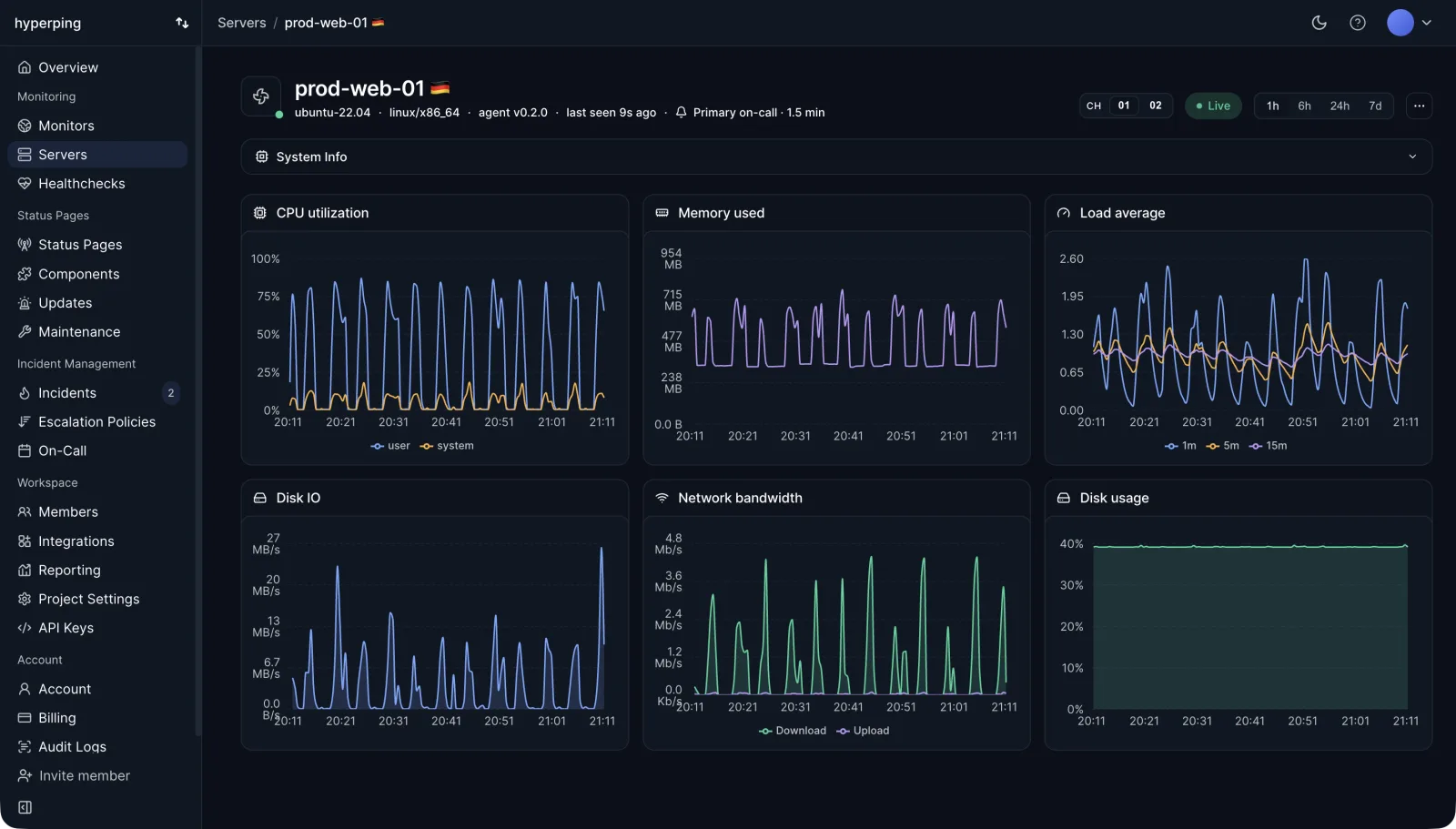
History is kept at 1-minute resolution for 2 days on Free, 7 days on Essentials, 14 on Pro and 30 on Business, with coarser rollups going back further. The full list of what is collected is in metrics collected. Inode counts are not among them, so keep df -i in your own checks for ext4 hosts full of small files.
3. Use the history to catch growth days early
Hyperping does not fire an alert when a disk crosses a percentage: server alerting is based on whether the agent is reporting, covered in the next step. What the agent gives you is the per-mount history to read the slope from. Open the server after a deploy or once a week and look for a mount whose line climbs steadily, and use that growth rate to size the free-space floor or time-to-full rule in the alerting you run yourself.
4. Page on-call when the server stops reporting
Bind an escalation policy to the server from its Alerting panel. When no metrics arrive for longer than the server's offline threshold (90 seconds by default, 60 at minimum), an outage opens and the policy pages its channels: email, SMS, phone calls, Slack, Teams, PagerDuty, OpsGenie, webhooks or an on-call schedule. If a full disk ends with the host crashing or hanging, that is the page you get. Recovery notifications go out when metrics resume. The server alerting docs show how to test it by stopping the agent on a non-critical host.
5. Add uptime checks and a status page
A full disk often breaks the application before it breaks the host. Uptime monitoring with HTTP checks against the services on that box catches the errors users see, and a status page tells customers what is going on while you clear space.
The free plan includes 1 server agent with 2 days of history, enough to try it on the host that filled up. Server alerting is on the paid plans: Essentials is $24 a month billed yearly ($29 monthly) with 5 agents, Pro $74 with 20, Business $249 with 100. Details are on the pricing page.
Where to start
If the error is happening right now, run df -h on the failing path and df -i on the same path before deleting anything, because the two numbers decide which half of this article you need. If space is the problem and du does not explain it, lsof +L1 usually does.
Once the host is writing again, set the journald cap, the Docker log limits and a logrotate rule for every application log. Those three settings cover most of the full disks I have cleaned up, and the per-mount history covers the ones they do not.
FAQ
What does 'No space left on device' mean on Linux? ▼
It is the text of ENOSPC, errno 28. A write failed because the filesystem behind that path had no free blocks or no free inodes. It can also come from a full tmpfs such as /tmp or /dev/shm, from ext4 blocks reserved for root, or from the inotify watch limit, which reuses the same error code without touching the disk.
Why do I get 'No space left on device' when df shows free space? ▼
Run df -i first. If IUse% is 100%, the filesystem ran out of inodes, which happens with millions of small files even when gigabytes are free. If inodes are fine, check that you ran df on the right mount with df -h /the/failing/path, and look for a tmpfs mount such as /tmp or /dev/shm that has its own, much smaller limit.
How do I fix 'No space left on device' in Docker? ▼
Run docker system df to see what is taking the space, then docker system prune to remove stopped containers, dangling images and unused build cache. Add -a to also remove every image no container uses. Container logs are not in that report: check /var/lib/docker/containers/*/*-json.log and set max-size and max-file in /etc/docker/daemon.json so they stay bounded.
What is 'No space left on device (os error 28)'? ▼
It is the same ENOSPC error, printed in the format Rust programs use for operating system errors. You see it from cargo, rustup, uv, deno and other Rust tools, most often on CI runners where a target directory or package cache fills a small disk. The fix is the same as for any full disk; on Windows the equivalent is os error 112.
Is it safe to delete log files in /var/log? ▼
Rotated and compressed files such as syslog.2.gz or access.log.5.gz are safe to delete. Do not rm a log file a running process still writes to, because the space is not released until the process closes it. Empty it in place with truncate -s 0 instead, and use journalctl --vacuum-size for the systemd journal rather than deleting files under /var/log/journal.
How do I stop the systemd journal from filling the disk? ▼
Set SystemMaxUse in a drop-in such as /etc/systemd/journald.conf.d/size.conf, for example SystemMaxUse=500M, then restart systemd-journald. Without it, journald's persistent storage defaults to 10% of the filesystem, capped at 4G, which is a lot on a small root disk.