Delete a monitor
Remove a monitor you no longer need, and know exactly what you lose when you do.
You might want to delete a monitor when:
- The service or endpoint being monitored has been decommissioned
- You created a duplicate monitor by mistake
- You are cleaning up monitors that are no longer relevant
How to delete a monitor
- Open the monitor
Open the Hyperping dashboard and click on the monitor you want to delete.
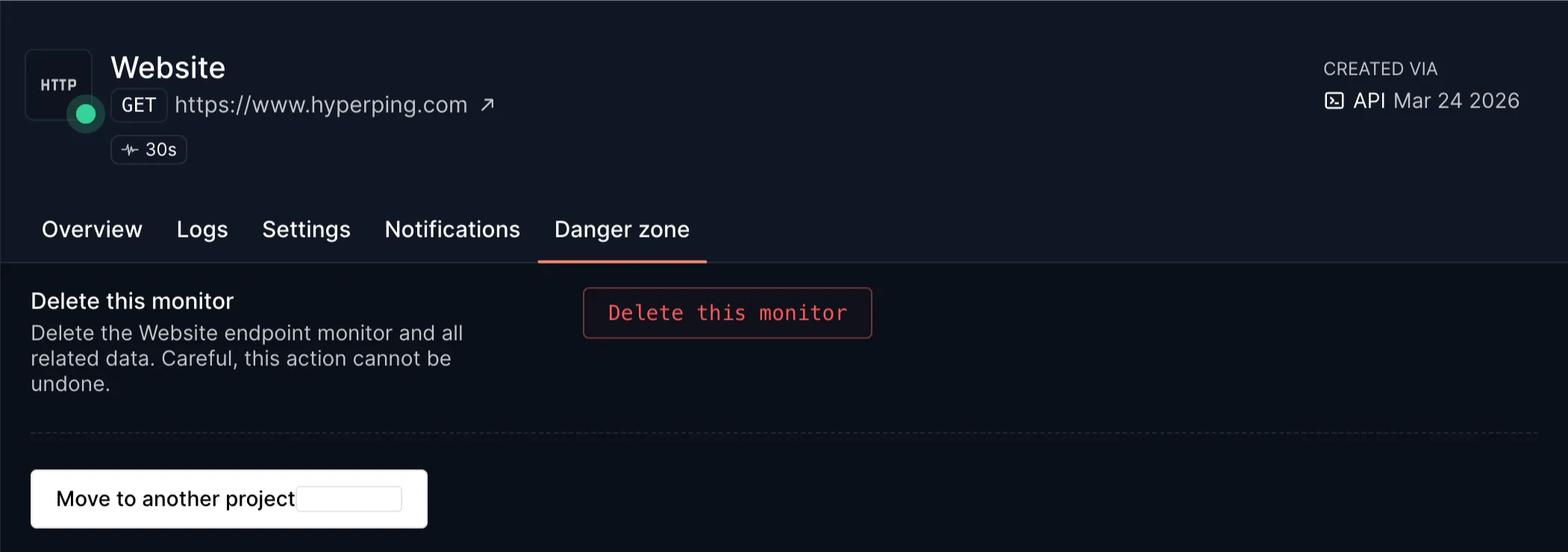
- Go to the Danger zone tab
It sits on the monitor's detail page.
- Click the delete button
Checks and notifications stop immediately.
What gets deleted
| Data | Result |
|---|---|
| Monitor configuration | Permanently removed |
| Response time history | Permanently removed |
| Outage records | Permanently removed |
| Check logs | Permanently removed |
| Notifications | Stopped immediately, no further alerts sent |
| Status page services | Removed from any status page that used this monitor |
Pause vs. delete
If you are unsure whether you will need the monitor again, pause it instead. Pausing stops all checks and notifications but keeps the monitor's configuration and history intact. You can resume a paused monitor at any time.
Delete only when you are certain the monitor is no longer needed.
Pausing is also scriptable: set the paused field with the Update monitor API.
curl -X PUT https://api.hyperping.io/v1/monitors/mon_3GhAQMYGEQuyUH \
  -H "Authorization: Bearer ${API_TOKEN}" \
  -H "Content-Type: application/json" \
  -d '{ "paused": true }'
Delete via the API
Send a DELETE request with the monitor's UUID. The same warning applies: all monitoring data and historical metrics are permanently deleted.
curl -X DELETE https://api.hyperping.io/v1/monitors/mon_3GhAQMYGEQuyUH \
-H "Authorization: Bearer ${API_TOKEN}"Response204 No Content
(empty response body)Full reference in the Delete monitor API.
Troubleshooting
I accidentally deleted a monitor
Deleted monitors cannot be recovered. You will need to create a new monitor with the same settings. Historical data from the deleted monitor is not recoverable.
The delete option is not available
Make sure you are on the monitor's Danger zone tab, not the overview or notifications tab. Both Owners and Teammates with project access can delete monitors.