
Status pages get four upgrades this month: a monthly incident calendar, an opt-in design refresh, a dedicated logo for dark mode, and control over your logo size.
Incident calendar
Your status page can now display a monthly calendar of incidents and maintenances at the bottom of the page.
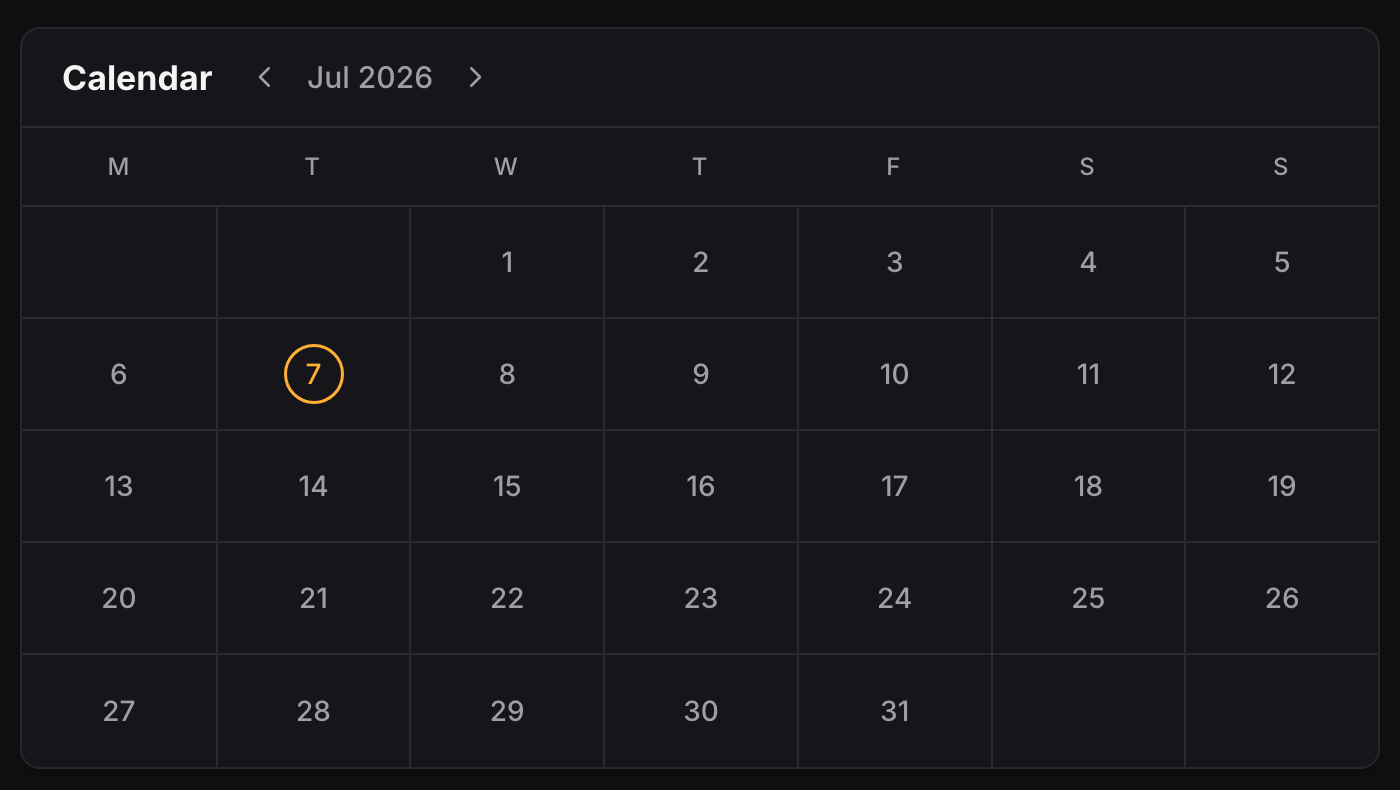
Days with events are circled, color-coded by the most severe event of the day: red for outages, amber for incidents, blue for maintenances. Hovering a day lists what happened, with links to the full incident details. Visitors can navigate month by month, and scheduled maintenances show up on their planned date.
For most teams the calendar is mostly empty, and that is the point: it shows months of reliability on a single screen, instead of asking visitors to scroll through history.
Enable it per status page in Settings → Appearance → Incident calendar. Read more in the incident calendar docs.
New design
There is also a new opt-in look for status pages: neutral grays, softer typography, and a unified status icon set.
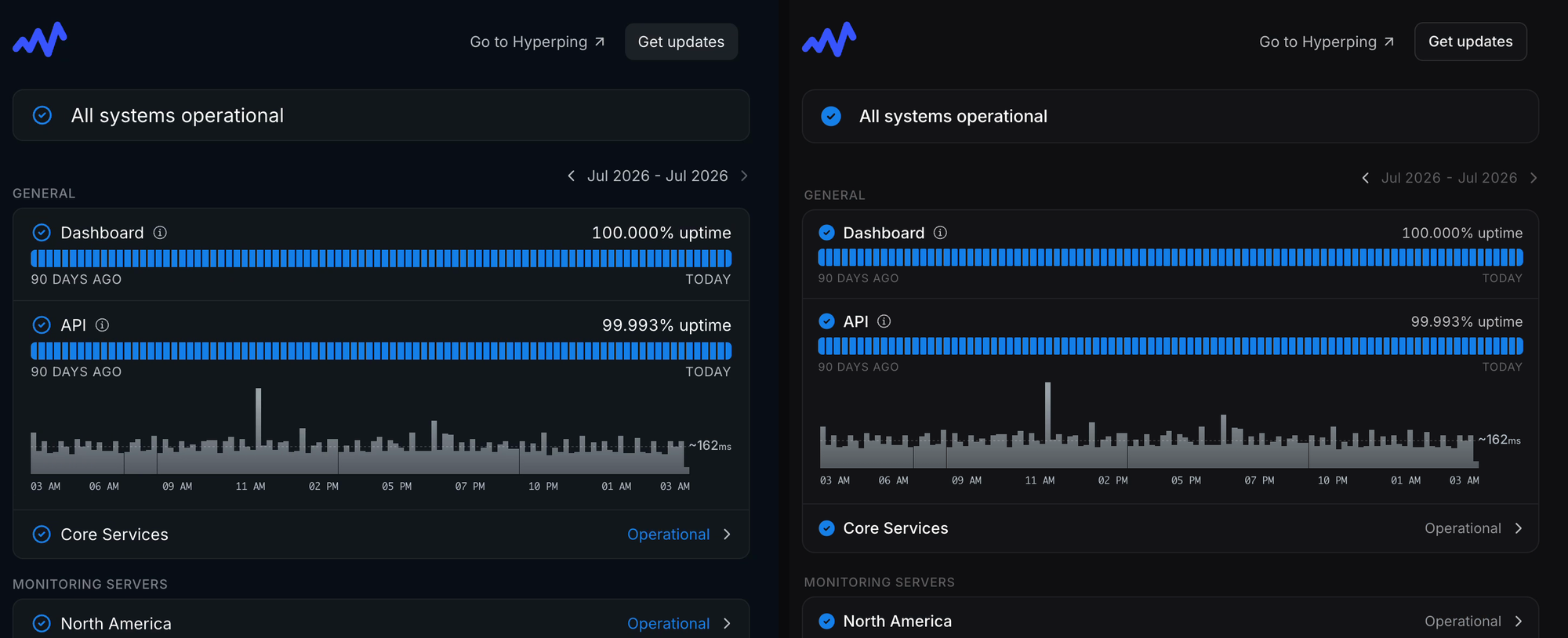
- Neutral palette: colored chrome is replaced with a calm gray scale, in both light and dark modes, so your accent color and incidents stand out
- Softer typography: tighter headings, lighter body text, tabular numbers for uptime figures
- Unified status icons: operational, incident, outage, and maintenance icons now come from a single set with consistent geometry
- Consistent cards: services, incidents, and the status banner share the same hairline borders and rounded corners
Turn it on in Settings → Appearance → New design. Existing pages keep the current design until you opt in.
Per-theme logos and logo height
Two smaller appearance additions:
- Logo for dark mode: upload a second logo shown only when the page is in dark mode, so a dark logo stays visible. With a single logo set, behavior is unchanged.
- Logo height: adjust your logo rendering from 20 to 64 pixels, width scales automatically.
Both live in Settings → Appearance, next to the existing company logo and favicon options.
Questions? Reach out via in-app chat or email us at hello@hyperping.io.